
Configure your dashboards
Dashboards
A dashboard is your personal landing page in OmniFi. You build it from widgets and apps, such as a list of your favorite reports, the approvals waiting for you, or a chart from one of your data marts, and you arrange them the way you work.
You can keep several dashboards and switch between them, for example one for your daily monitoring and another you only open at month end. A dashboard can stay private, or you can share it with the groups you work in.
Creating a dashboard
When you first log in to the OmniFi Web portal, your landing page may look something like this:
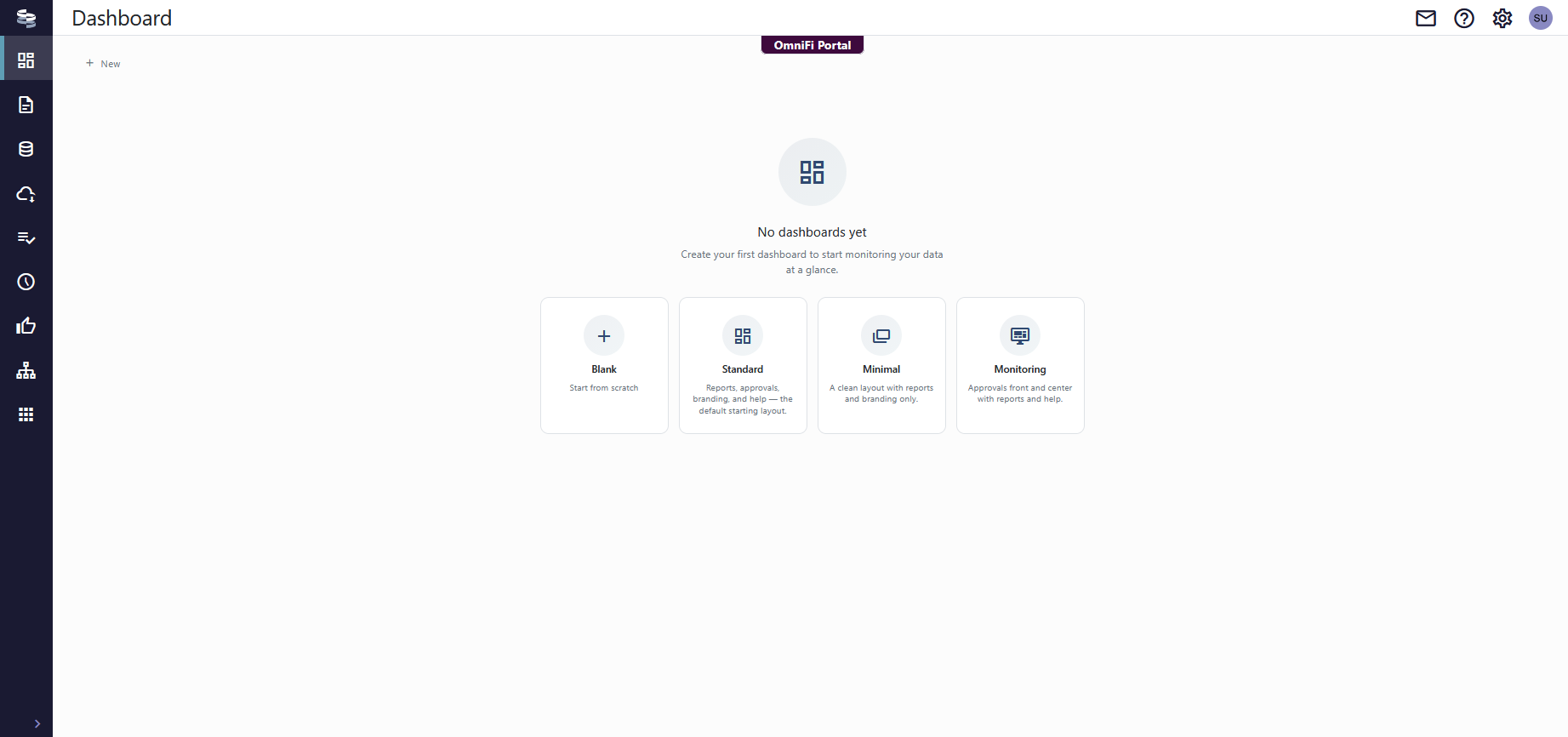
This is your dashboard screen, and it is empty because you don't have any dashboards configured yet. You can start by creating one from an empty layout or from a template:
| Starting point | What you get |
|---|---|
| Blank | An empty dashboard you fill yourself. |
| Standard | Reports, approvals, branding, and help. This is the default starting layout. |
| Minimal | A clean layout with reports and branding only. |
| Monitoring | Approvals front and center with reports and help. |
A template is only a starting point. Once the dashboard exists you can add, remove and rearrange everything on it, and the template it came from no longer matters.
To create further dashboards later, select New in the toolbar. The same starting points appear, and the edit toolbar above them also lets you import a layout that you or a colleague exported earlier.
Working with a dashboard
A saved dashboard opens in read mode. This is how you will normally use it: the widgets are live, and the toolbar only offers the actions you need to move around.
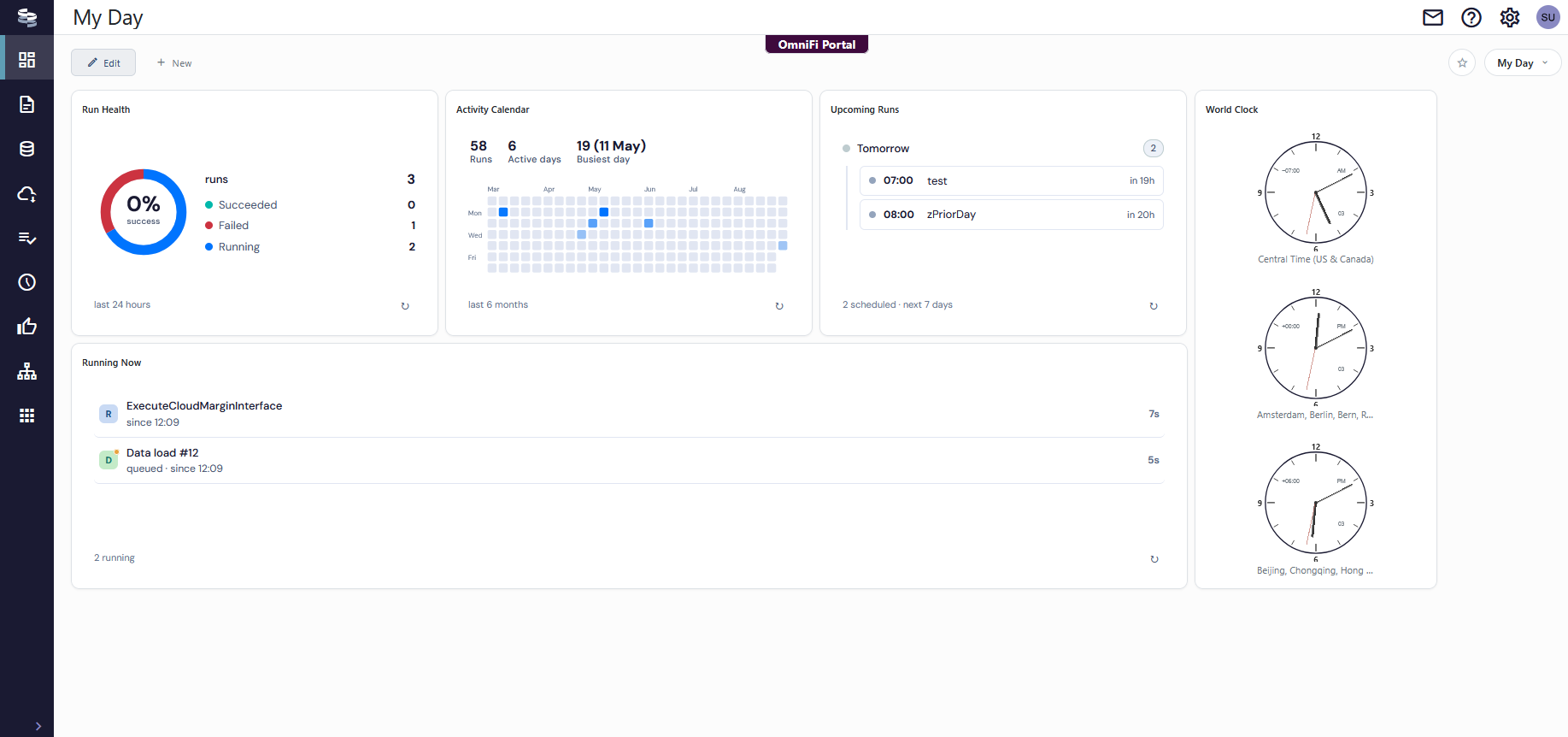
The dashboard name is the page heading. On the right you have the favorite star and the dashboard switcher. On the left, Edit opens the dashboard for changes and New starts another one.
On a dashboard that someone shared with you read-only, you see Copy in place of Edit, so you can take your own copy instead of changing someone else's work.
Editing the layout
Select Edit to open the full toolbar. While you are editing, the dashboard is yours to rearrange, and nothing is stored until you save.
To add a widget, select Widget to open the catalogue.
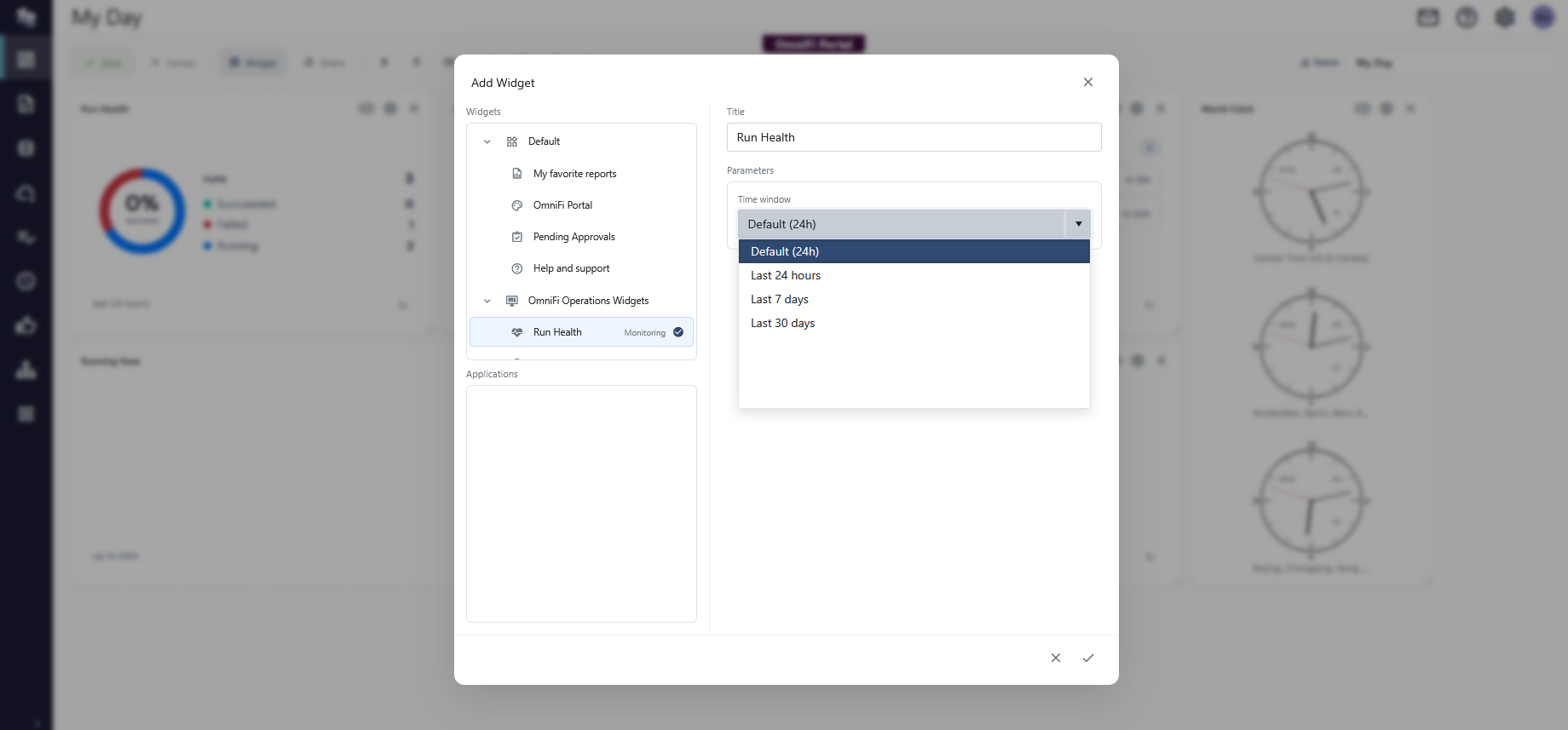
The catalogue has two parts. Widgets are the individual panels you place on a dashboard, grouped by the package they come from. An app can contribute widgets of its own, or you can place the app itself on a dashboard as a full-page experience from the Applications section.
You can give the widget a title of your choice or use the default title.
Some widgets also take parameters, such as which report or which data mart table to read. These appear once you select the widget, and you cannot add the widget until you have filled in the required ones.
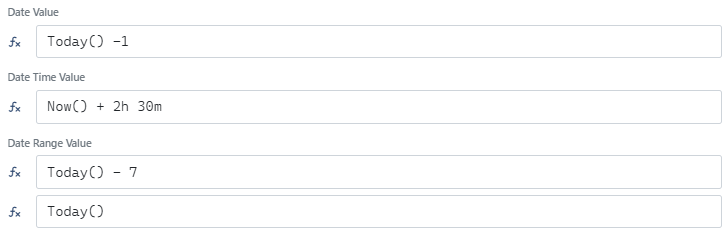
Note that date and time parameters allow simple formulas including Today() and Now()with offset. Click the fx button next to the field to enter a formula:
If you add a widget without everything it needs, it shows a wrench symbol in place of its content. Click the symbol to open its settings and finish the configuration.
In edit mode each widget carries its own controls in the top right corner of its header.
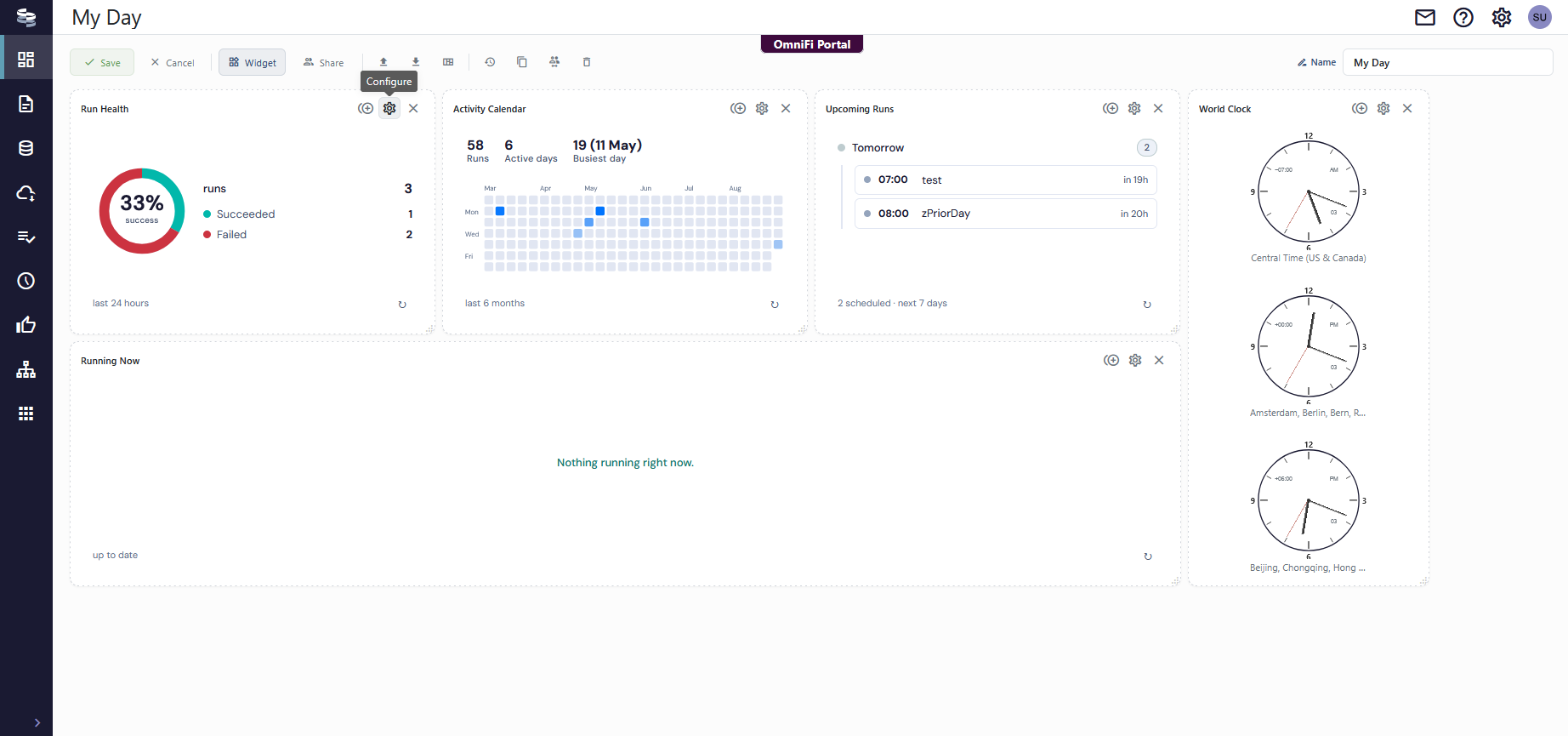
- Duplicate places a second copy of the widget on the dashboard.
- Configure reopens the widget's settings, including its title and parameters.
- Remove takes the widget off the dashboard.
To move a widget, drag it by its header. To resize it, drag the handle in its bottom right corner. Widgets snap to the dashboard grid: anything in the way moves down, and the layout then closes up the gaps, so you do not have to tidy up after a move.
Some widgets allow you to configure parameters. Click the Configure button of the widget card to input parameters.
Applying a template to an existing dashboard
You can also reach the templates from the edit toolbar, through Template.
Applying a template removes the widgets already on the dashboard and puts the template's layout in their place.
As with any other edit, this is only stored when you save, so Cancel reverts this change.
Switching between dashboards
The switcher in the top right corner lists every dashboard you can open, both your own and any that others have shared with you.
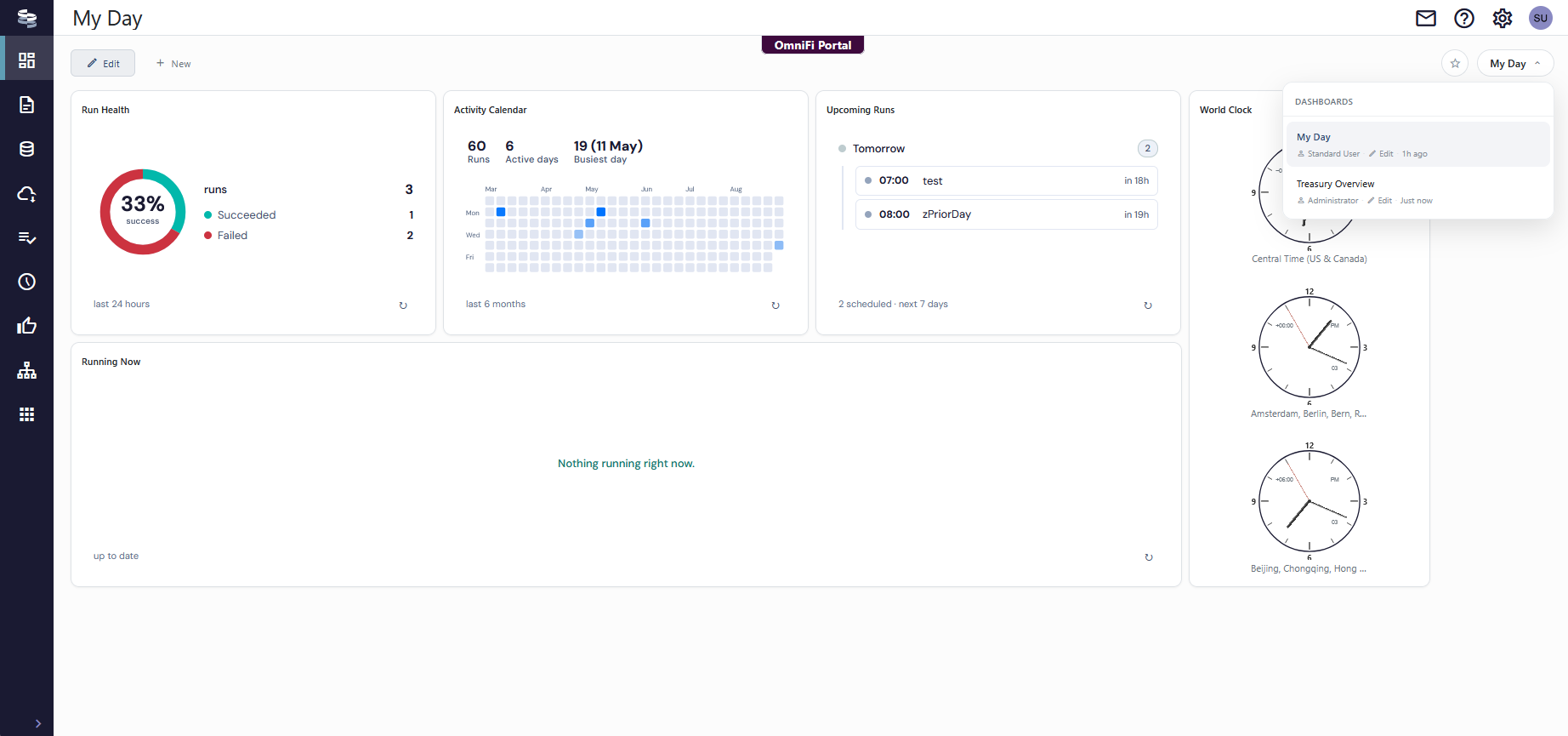
Dashboards are listed alphabetically, with your favorites pinned to the top under Favorites. Each entry shows who owns it, whether you can edit it or only read it, and when it last changed. That last detail helps when several dashboards in a team have similar names.
Selecting a dashboard opens it. Because each one has its own address, your browser's back button takes you to the previous dashboard.
Favorites and your default dashboard
The star next to the switcher marks the dashboard you are looking at as a favorite.
To choose which dashboard opens when you go to the Dashboards page, open the switcher and select Set default on the one you want. A Default badge marks the current choice. You can have one default at a time.
If your default dashboard is later deleted, or nobody shares it with you any more, OmniFi falls back to the dashboard you changed most recently.
Sharing a dashboard
You share a dashboard with groups rather than with individual users, so access follows the teams you already have. Select Share while editing.
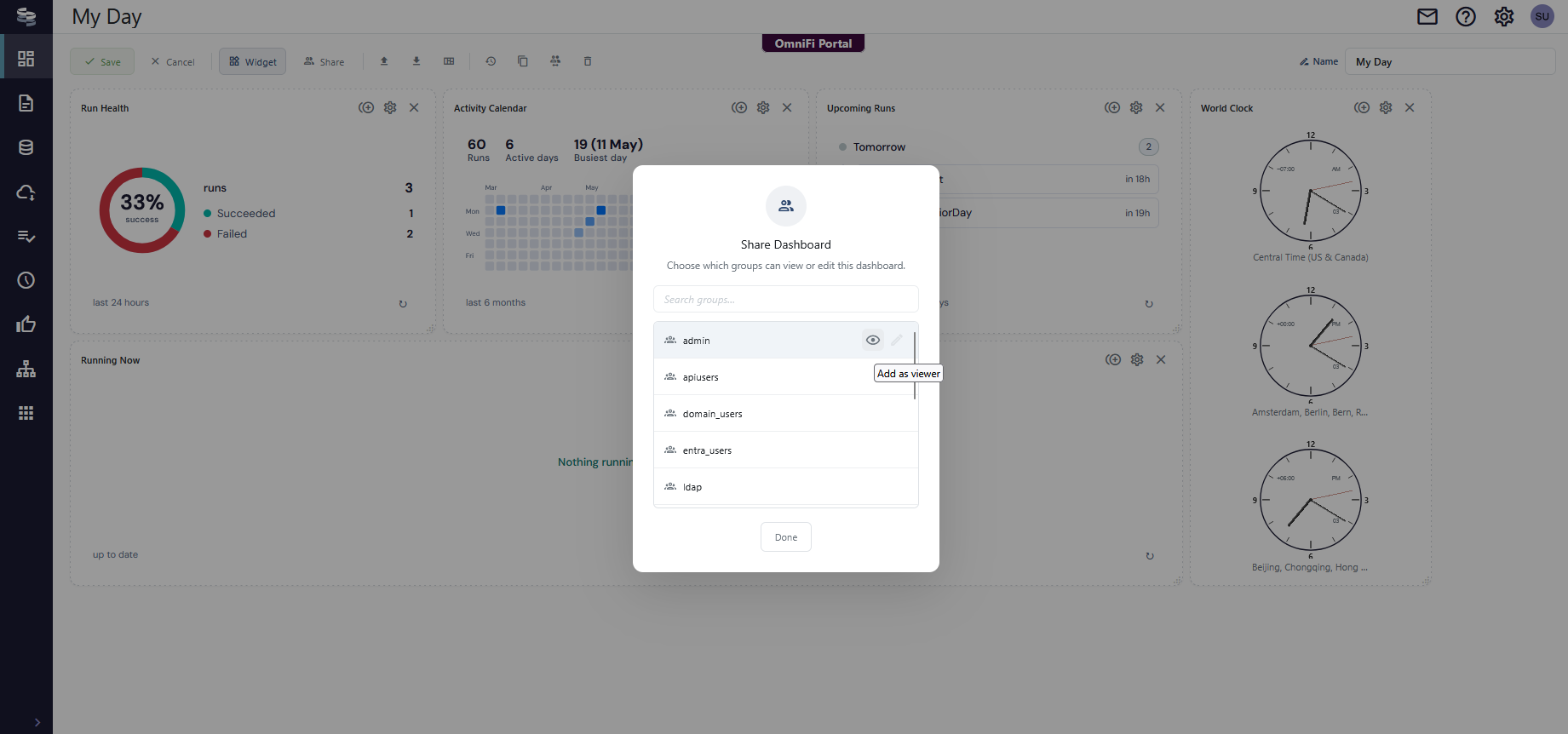
Search for a group and add it as a viewer or an editor. The groups you have already added appear at the top, where you can configure the access level:
- Viewers are allowed to use the dashboard and copy it, but not edit.
- Editors are allowed to modify the dashboard.
Transferring ownership
Every dashboard has an owner, and only that owner or an administrator can hand it over. Select Owner while editing, then choose the new owner.
The transfer does not happen straight away. OmniFi shows the pending owner next to the name field and applies the change when you save, so cancelling the edit keeps the dashboard with you.
Once ownership has moved, the previous owner keeps access only through whatever groups the dashboard is shared with.
Copying a dashboard
Copy creates a new dashboard from the one you are looking at, with the same widgets and layout. Use it to base a new dashboard on an existing one. It is also the only way to build on a dashboard that someone shared with you read-only.
The copy opens as an unsaved draft so you can adjust it, and change who it is shared with, before you store it.
Exporting and importing a layout
Export downloads the current layout as a file, and Import applies such a file to the dashboard you are editing, replacing the current layout. Imported files must be layout files of up to 1 MB.
Between them, these let you move a layout to another environment, keep a copy before making large changes, or send a colleague a starting point without giving them access to your dashboard. A layout file describes the widgets and their arrangement, not the data inside them, so each person still sees the data they have access to.
Deleting a dashboard
Only the owner and administrators can delete a dashboard, and OmniFi asks you to confirm before it does.
Deleting a dashboard removes it for everyone it was shared with, not only for you, and you cannot undo it. If colleagues rely on the dashboard, consider removing your own access or transferring ownership instead. If you want to keep the layout, export it before you delete.
Updated about 2 months ago